“Microsoft has elected to go out with a bang for 2025, having packed its final Windows 11 Patch Tuesday of the year with a slew of meaningful tweaks, UI refinements, and feature expansions. Whereas many updates in the past were criticized for breaking as much as they fix, this release focuses on smoothing rough edges, unifying design language, and giving Copilot deeper hooks into the OS.
But for Windows power users and PC enthusiasts, this isn’t just another routine patch. It’s a bundle of changes striking at core workflows from the long-overdue dark mode consistency in File Explorer to virtualization controls that no longer require spelunking through legacy menus. It’s also another sign that Microsoft is continuing to push Copilot as an omnipresent assistant, whether you’re sharing an app window or digging into device settings.
What follows is a breakdown of the most notable improvements and why they matter, for those who demand more out of their OS.
1. Dark Mode in File Explorer Finally Feels Cohesive
For dark mode lovers who have been clambering for years to have a consistent look in File Explorer across all the dialogs, the December update brings new changes. Updating the dark theme on copy, move, delete and error dialogs, along with progress bars and chart views for better readability. Still, as preview builds have shown, some people do see a jarring white flash when opening folders in dark mode, a bug Microsoft claims to work on squashing. The visual cohesion here is one plus, but perfection will be needed when that fix is executed.
2. Share any app window directly with Copilot
The taskbar gains a subtle but powerful new trick: hover over an open app, and you’ll see a “Share with Copilot” option. Clicking it sends that window’s contents to Copilot Vision, which can then analyze, summarize, or guide you through whatever’s on-screen. This is more than just a novelty-it’s a frictionless way to bring AI assistance into your workflow sans juggling screenshots or copy-paste.
3. Windows Spotlight Gets Faster Controls
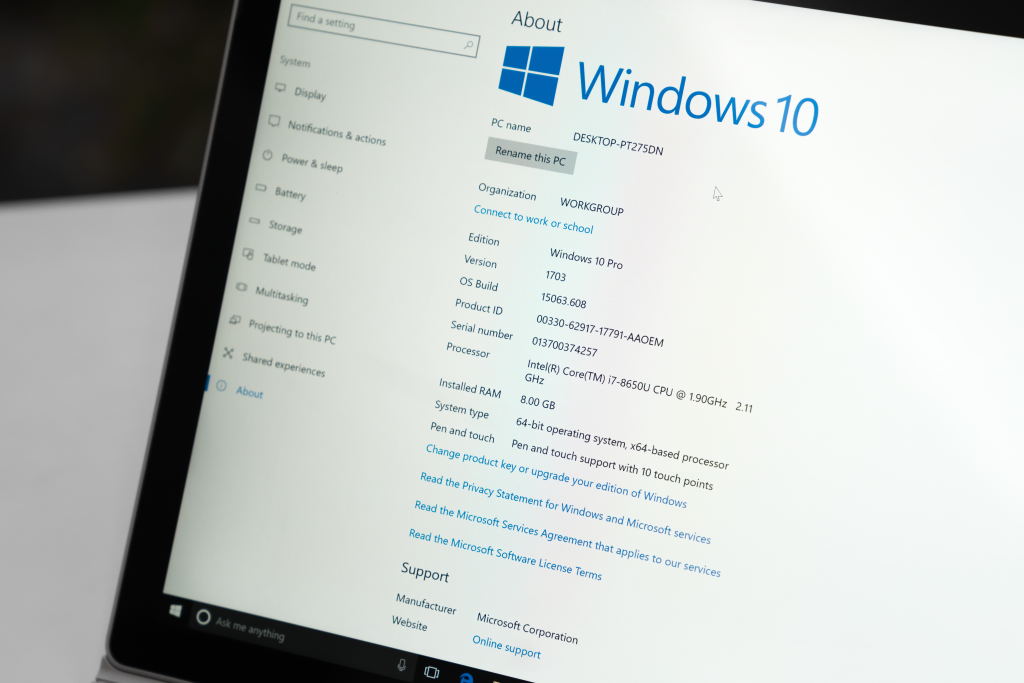
The update also adds right-click access to “Next background” and “Explore background” directly from the desktop for Windows Spotlight users who like to keep their desktop fresh. The latter opens a Bing page with more information on the image. It’s small, but now interacting with Spotlight’s rotating wallpapers is much less buried in the menus.
4. Virtual Workspaces in Settings – No Need for Legacy Dialogs
Virtualization features such as Hyper-V and Windows Sandbox do not need to be delved deep into the old Windows Features dialog anymore. A new page, Virtual Workspaces in Settings > System > Advanced, centralizes those toggles. Power users who run test environments or isolated apps appreciate how this streamlined access cuts setup time and keeps the experience within Windows 11’s modern UI.

5. Device Information preview in Settings Home
There’s a new card on the Settings home page, Device info, with processor, RAM, storage, and GPU details without any extra clicks. Click into it, and you find a newly redesigned About page with better naming for sections: “Device info” and “Windows info”. To the enthusiast who often needs to check hardware specs or troubleshoot, it’s a welcome reduction in friction while navigating.
6. Widgets Board Redesign and Multiple Dashboards
The Widgets board gets a cleaner separation between widgets and the Discover feed, along with notification badges on the navigation bar. Microsoft is also adding support for multiple dashboards, letting you group widgets and feeds by theme and switch between them via new left-side nav. While the design still divides opinion, added structure and customization options are steps toward making widgets genuinely useful.
7. Haptic Feedback for Pen Input
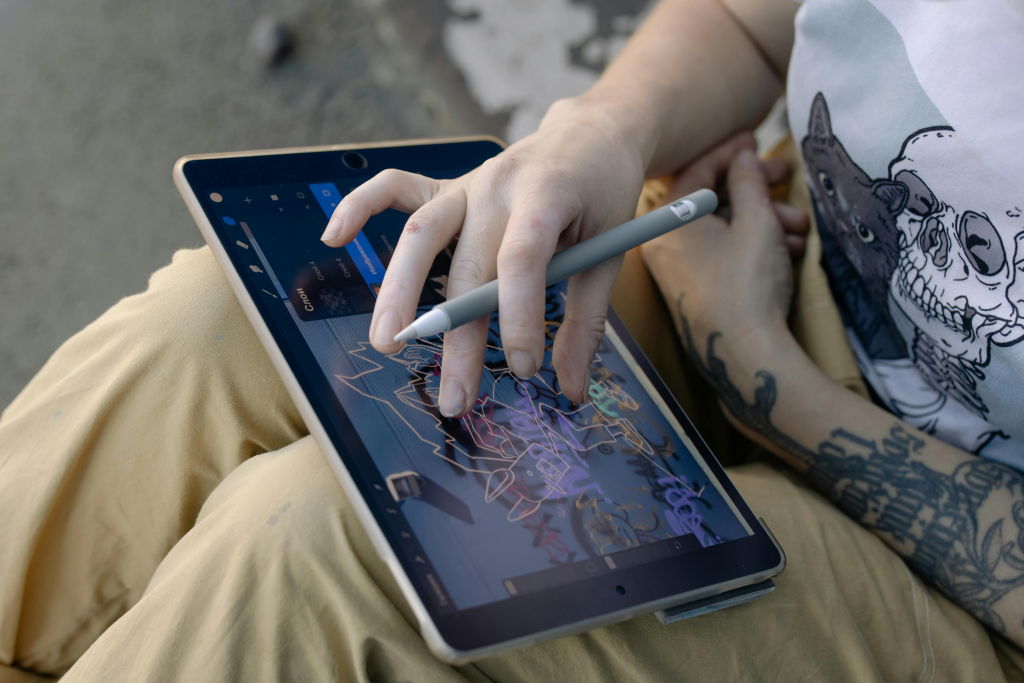
With compatible digital pens, haptic feedback is supported on touch-enabled devices. This allows subtle vibrations when performing certain actions, such as closing windows or snapping them into place, adding an element of tactility to interactions. To artists, note-takers, and those who just prefer inputting with a pen, this makes the experience feel far more responsive and precise.

8. Full-screen Xbox experience on more devices
Where previously the Xbox Full Screen Experience worked only with the ASUS ROG Ally line of handheld PCs, there are more options now. Replacing the desktop with a console-optimized UI for easier controller navigation, this can also save up to 2GB of memory usage by reducing desktop overhead. For gamers, it’s a cleaner, faster way to jump into titles from Xbox, Game Pass, or other PC stores.

9. Windows Studio Effects Expand to External Cameras
With Copilot+ PCs, AI-powered Windows Studio Effects things like background blur, auto framing, and more will be able to be applied to USB webcams and even built-in rear cameras, not just the main laptop cam. As Microsoft said in its blog post, “We are working to bring the Windows Studio Effects experience from integrated laptop cameras to a broader range of camera hardware.” Finally, it makes the feature viable for docked setups and multi-camera streaming.
The December 2025 refresh of Windows 11 doesn’t reinvent the OS wheel, but meaningfully improves day-to-day touchpoints for those who know the system inside and out. From long-requested UI polish to deeper AI integration, these changes really show Microsoft is listening at least in part to its most demanding users. The real test now will be whether this momentum can be sustained without the regressions that have dogged so many previous refreshes.