It’s rare for a year’s last Patch Tuesday to bring any shake-ups, but December 9, 2025, is due to be one of those rare moments. Microsoft’s final Windows 11 update of the year is full of changes, some subtle, others transformative, that will make the OS look different, feel different, and interact differently with users.
To the tech-savvy Windows fan, this isn’t just another round of bug fixes; it’s a mix of UI refinements, deeper Copilot integration, and hardware-level enhancements that really show Microsoft’s dual focus on aesthetics and AI-driven functionality. While not every feature will land instantly thanks to the company’s Controlled Feature Rollout, the scope of changes here makes this update one to watch closely.
1. Windows Search Finally Matches the Start Menu
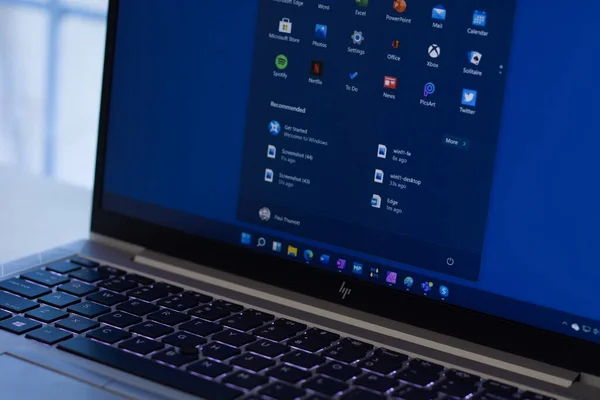
The visual mismatch between Windows Search and the Start menu has been a lingering annoyance for users that pay close attention to such details. This update brings the search field’s height in line with the redesigned Start menu, and Windows 11 will feel more consistent as a result. Of course, this is mainly cosmetic, but it’s also another instance of Microsoft working on making Windows 11’s design language feel more coherent. That said, the Start menu’s penchant for taking over quite a bit of screen space remains unaddressed, and that’s somewhere Microsoft can further improve.

2. Taskbar Gains ‘Share with Copilot’
The reach of Copilot expands with a new taskbar option that allows users to share their current view directly with the AI assistant. Floating over an app’s thumbnail exposes a quick access entry point to Copilot Vision for instant context‑aware interaction. Microsoft has also smoothed out the animations for taskbar transitions, yielding smoother and more predictable transitions between apps – a minor but welcome quality‑of‑life boost for multitaskers.

3. Dark Mode in File Explorer Gets More Consistent
After years of partial dark mode support, Microsoft extends the theme to additional File Explorer dialogs, including copy, move, and delete operations. Progress bars, charts, and confirmation prompts get the darker aesthetic treatment. But, there’s a caveat to the rollout: users will see a brief white flash when opening File Explorer in dark mode-a problem Microsoft documents in KB5070311. The company promises it’s working on a fix, but until then, this visual glitch could be jarring in low‑light environments.

4. Device Info Card on Settings Home
The Settings app is now showcasing key system specs, such as processor, storage, RAM, and GPU, directly on its Home page by means of a new ‘Device info’ card. This eliminates the necessity of having to dig through multiple menus for basic hardware details. On some users’ devices, this card will also include a shortcut to the full ‘About’ page for streamlined access to deeper system information.
5. Virtual Workspaces Management
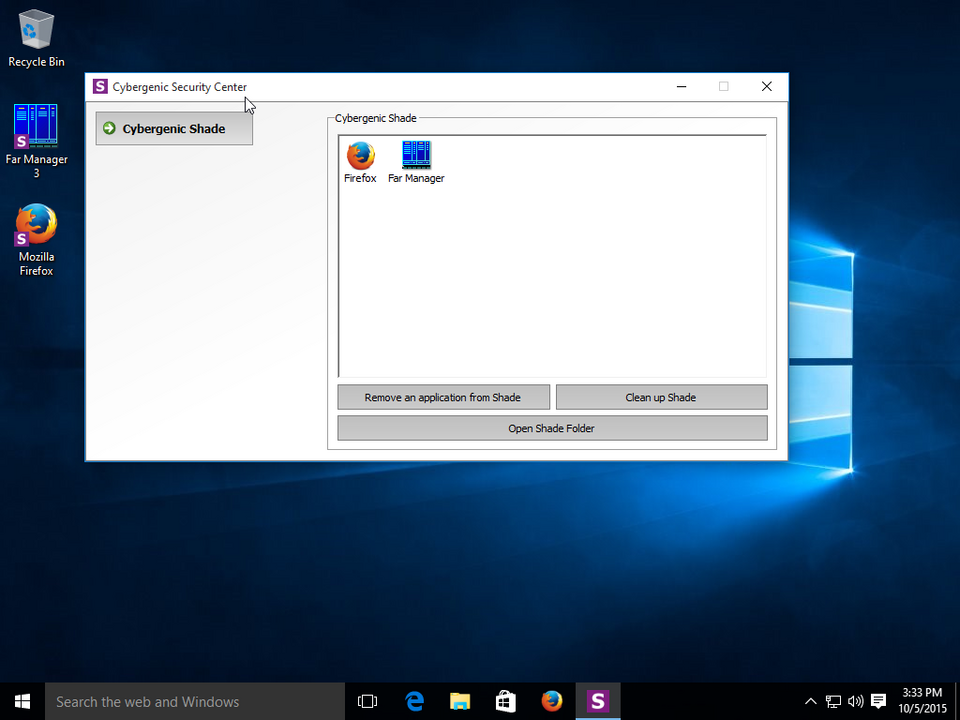
A new ‘Virtual Workspaces’ page within Advanced settings collates virtualization controls, including Windows Sandbox and protected hosts. Previously buried in legacy menus within Windows Features, these options will now be easier to find and manage. The change has obvious benefits for IT professionals and power users who regularly toggle between various virtualization tools for testing or secure environments.
6. Widgets Board Redesign with Multiple Dashboards
The Widgets board gets a cleaner layout, rounded corners, and clearer separation between the widgets and the Discover feed. Copilot-curated stories aim to make content more relevant, while a left-side navigation bar allows switching between multiple dashboards each customizable with preferred widgets and feeds. Although resizing widgets still relies on the old menu options, Microsoft promises more personalization improvements in future updates.

7. Haptic Feedback for Digital Pens
Touch-enabled devices now provide subtle vibrations when using digital pens to simulate tactile interaction. These haptics engage with actions such as snapping windows or pressing the close button to afford a great deal of precision and make pen input feel far more responsive. It’s a small touch that could improve workflow for designers and note-takers alike.

8. Click to Do Context Menu on Copilot+ PCs
Copilot+ PCs have an updated ‘Click to Do’ menu that unifies actions like Copy, Save, Share, and Open into one line. A built‑in prompt box offers quicker ways to access Copilot; if it detects a large image or table, for example, the menu will auto‑open to speed up how one might interact with it. The design is consistent with the evolving context menu in File Explorer.
9. Xbox Full Screen Experience Expands
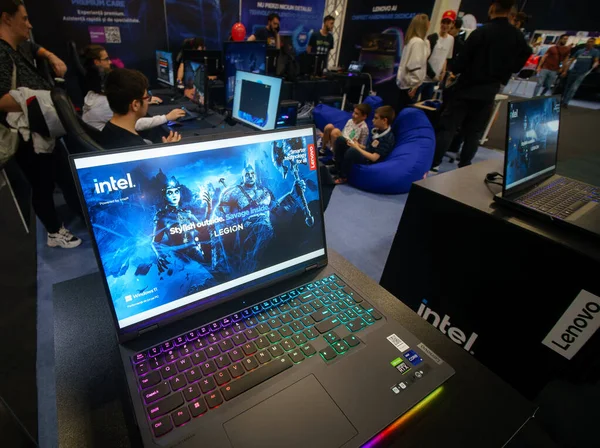
What was once exclusive to a few handhelds, such as the ASUS ROG Ally, is now available on more devices, including standard PCs. The console‑style interface makes it easier to get around with a controller and cuts down on desktop resource usage to as much as 2GB of memory. Gamers can enable it under Settings > Gaming > Full screen experience, with changes applied after a restart.
10. Windows Studio Effects for External Cameras
AI‑powered Windows Studio Effects including background blur, auto‑framing, and more now work with external USB webcams and built‑in rear cameras on supported Copilot+ PCs. This finally rectifies a long‑standing limitation that saw the effects limited to integrated laptop cameras. As Microsoft points out, this expansion “helps you stay professional and look your best across more setups,” bringing NPU‑driven enhancements to a wider range of hardware.
The December 2025 update for Windows 11 from Microsoft mixes cosmetic polish with functional depth, specifically AI integration and personalization. While some features are still maturing-and a few ship with known quirks-the breadth of changes underscores the OS’s shift toward a more unified, adaptive experience. For PC enthusiasts and IT pros, this patch isn’t just a year‑ender; it’s a preview of how Windows will evolve in 2026.